
Install
We offer various installation options and integrations to fit your development workflow. You can connect Satori via CLI, which can be installed using pip, or integrate it with your GitHub Application. Additionally, we support integration with other CI/CD platforms, such as GitLab or Jenkins. To enhance your experience and better visualize your test results, we provide a user-friendly web interface https://satori.ci.
Install Satori CI GitHub App
We recommend that you use your GitHub account to automatically test your repositories. You can create an account without GitHub, but that won't allow you to scan for repositories' bugs.
Step 1: Install the Satori CI GitHub App
- Go to the Satori CI GitHub App page. Authenticate with GitHub to proceed with the installation.
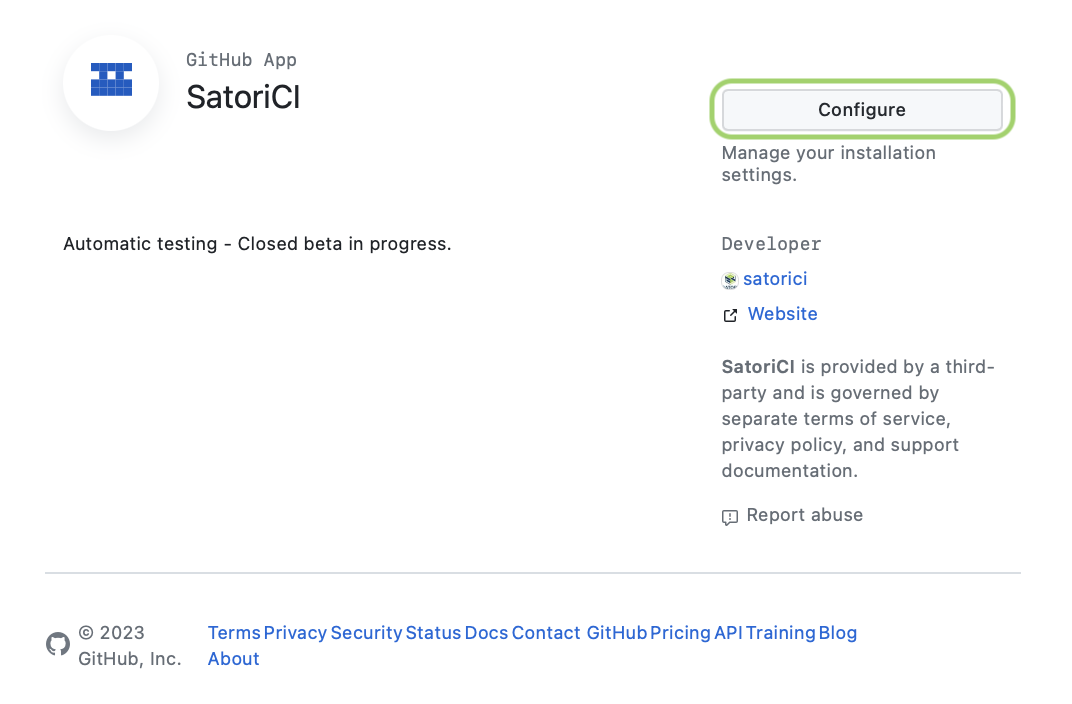
- Click on Configure.
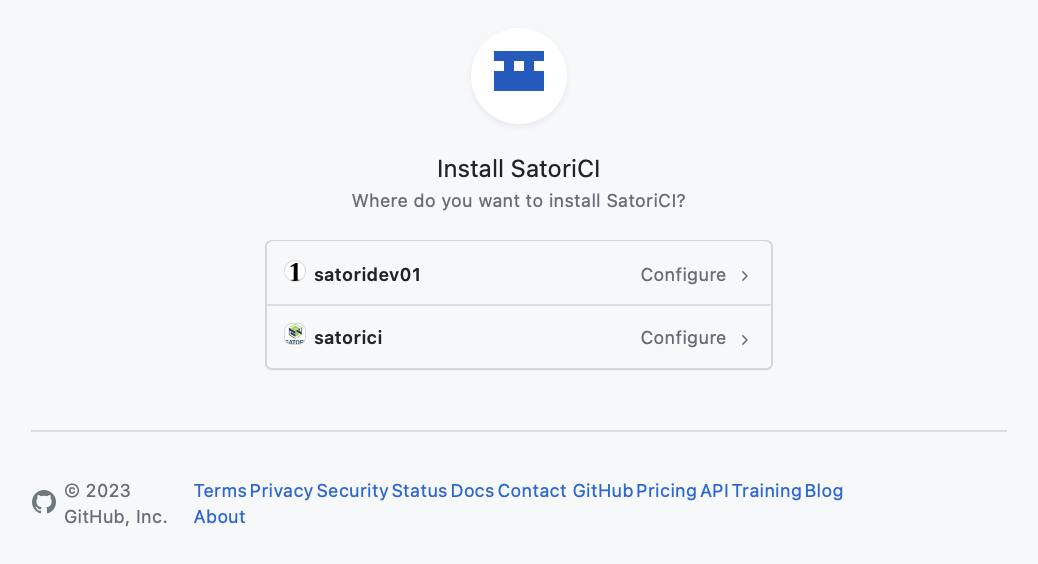
- Choose the GitHub accounts where you are installing the Satori CI App.
- Select the repositories where you want to install the app. We recommend to select All repositories.
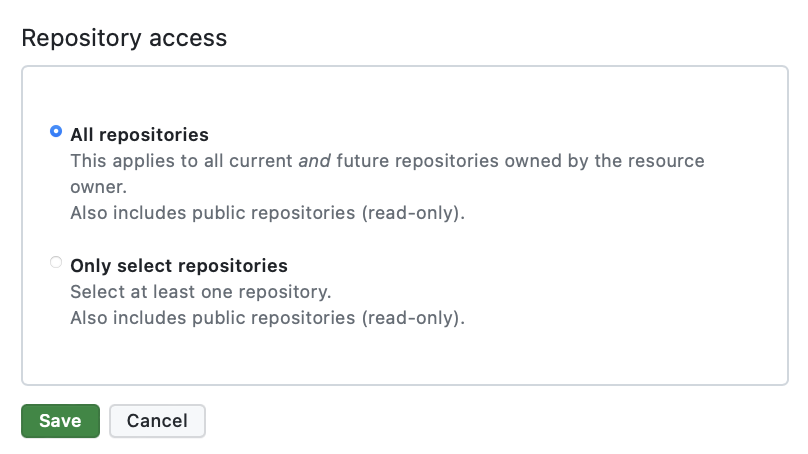
Once you are done, click on Save.
If you are pushing code, we will check it with the repository playbooks and the default playbooks defined. Your code only lives within the virtual machines that are present during the execution, it only remains on your GitHub account.
Install Satori CLI
The CLI interface is the best way to interact with Satori. New functionalities get pushed here first, which allows us to test ourselves before pushing the new features to the web.
Step 1: Install the Satori-CI CLI
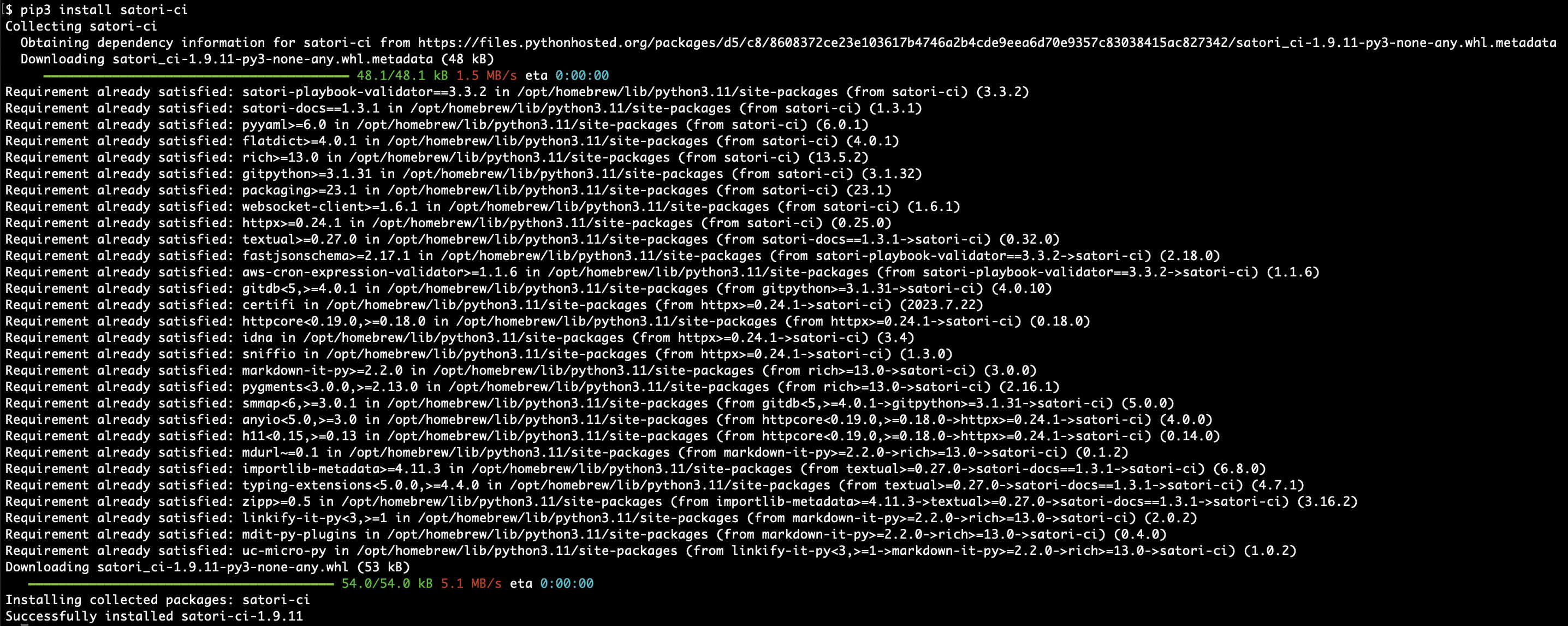
Open your command line terminal and execute the following command to install the Satori CLI:
pip install git+https://github.com/satorici/cli-v2The CLI needs Python 3.10 or later. Two commands, issue ID verify and issue ID advisory --improve, also need git and the Claude Code CLI (claude) on your PATH; nothing else does.
The console script is named satori-v2 so it can coexist with the v1 satori CLI. To update it later, run satori-v2 update (it reinstalls the CLI from git with pip).
Step 2: Obtain Your Satori Token
To use Satori-CI, you need to get your API Token. Follow these steps:
- Log in to the dashboard.
- Open API tokens in the sidebar and create a token: give it a name, the access it needs and an expiration.
- Copy the token (it starts with
sat_). It is shown only once.
A token only does what its scopes allow. Each resource has a read scope, which lists and shows, and a write scope, which does everything else:
| Resource | Scopes | Write lets the token |
|---|---|---|
| Jobs | jobs:read, jobs:write | Run, schedule, stop and delete jobs |
| Reports | executions:read, executions:write | Stop, delete and share reports |
| Findings | findings:read, findings:write | Triage, comment and request AI fixes |
| Advisories | advisories:read, advisories:write | Create, publish and delete advisories |
| Repositories | repos:read, repos:write | Open playbook pull requests |
| SSH | ssh:read, ssh:write | Open sessions (read connects to a running execution) |
| Settings | settings:read, settings:write | Change settings and saved parameters and secrets |
| Organizations | organizations:read, organizations:write | Create, rename and delete organizations and manage members |
For everyday CLI use, check both boxes of the All resources row. A token expires after 7, 30, 90 (the default) or 365 days, or never. It can be limited to one organization, and then it only acts on that one. Tokens are created and revoked only in the dashboard: a token cannot create another. A command that needs a scope the token lacks is refused.
An API token from the v1 Profile page at satori.ci still works.
Step 3: Configure Satori-CI
Replace the placeholder YOUR_TOKEN on the next command with your Satori CI API Token:
satori-v2 config token YOUR_TOKEN
Configuration
The token is stored in ~/.satori_credentials.yml, one section per profile. satori-v2 config token YOUR_TOKEN writes to the default profile; use --profile NAME (e.g. satori-v2 config token OTHERTOKEN --profile work) to keep another token on a separate profile. --profile is accepted by satori-v2 config and by the commands that save the default organization (organization ORG-ID use and organizations personal); for any other command, select the profile with the SATORI_PROFILE environment variable. Run satori-v2 config to print the current configuration (the token is shown as ***), or satori-v2 config KEY to print one value.
To set a GitHub personal access token used by the platform (for example for advisory workflows), run satori-v2 settings github YOUR_GITHUB_PAT (or the alias satori-v2 config pat YOUR_GITHUB_PAT). Check the active profile, your name and email, and whether a PAT is configured with satori-v2 whoami or satori-v2 settings github.
The following environment variables are read directly and take precedence over the credentials file:
SATORI_TOKEN: the API token to use (handy for CI, noconfigstep needed).SATORI_PROFILE: the profile to use (overrides--profile).SATORI_ENDPOINT: the API endpoint (default:https://api-v2.satori.ci).
Two more variables change where the CLI points, and are only needed for a non-default deployment:
SATORI_DASHBOARD_URL: the base URL of the dashboard links the CLI prints, such as report and advisory links (default:https://dashboard.satori.ci).SATORI_PLAYBOOKS_ENDPOINT: the endpoint of the public playbooks catalog used bysatori-v2 playbooksandsatori-v2 playbook satori://...(default: the Satori catalog).
Next Steps
Learn how to automatically test "Hello World".
If you need any help, please reach out to us on Discord or via Email