
Notifications
Personal notification defaults are configured with satori-v2 settings (or the web dashboard Settings page). The same command also manages GitHub PAT and AI credentials — see Other settings. Playbook settings.notify, satori-v2 run --notify, and satori-v2 search --notify send to Slack, email, Discord, and Telegram. The older playbook keys log / logOnFail / logOnPass are not used by v2 — migrate to settings.notify.
Our flexible notification system ensures that your team stays informed about the status of your projects in real-time. We offer integration with multiple communication platforms, including:
You can define the specific conditions under which you wish to receive updates—whether on test failures, successes, or both.
User notification defaults
Store personal defaults with satori-v2 settings (backed by GET / PATCH /settings under notify):
| Key | Purpose |
|---|---|
default | Preferred platform: slack, email, discord, or telegram |
slack_workspace | Slack team ID (T…) |
slack_channel | Channel ID or #name |
email | Address |
discord | Channel ID |
telegram | Chat ID |
When a notify rule’s to is incomplete — bare slack / email / discord / telegram / default, empty scheme://, or a Slack URI missing workspace and/or channel — the server fills those values from the job owner’s defaults (finish and issue-status notify) or the authenticated caller’s defaults (search --notify). Full URIs are left unchanged. Destinations that still cannot be completed are skipped.
Notification settings
You can configure notifications using either the web interface or the CLI.
Via CLI
Use satori-v2 settings described below.
Via Web
You can also set up notifications using the web interface by completing the necessary fields in the Notifications section of the Satori web dashboard.
- Log in to the Satori web dashboard.
- Navigate to the Settings section.
- Fill in the required fields for your notification preferences (e.g., email, Slack, Discord, etc.).
- Save your settings to activate notifications for your project.
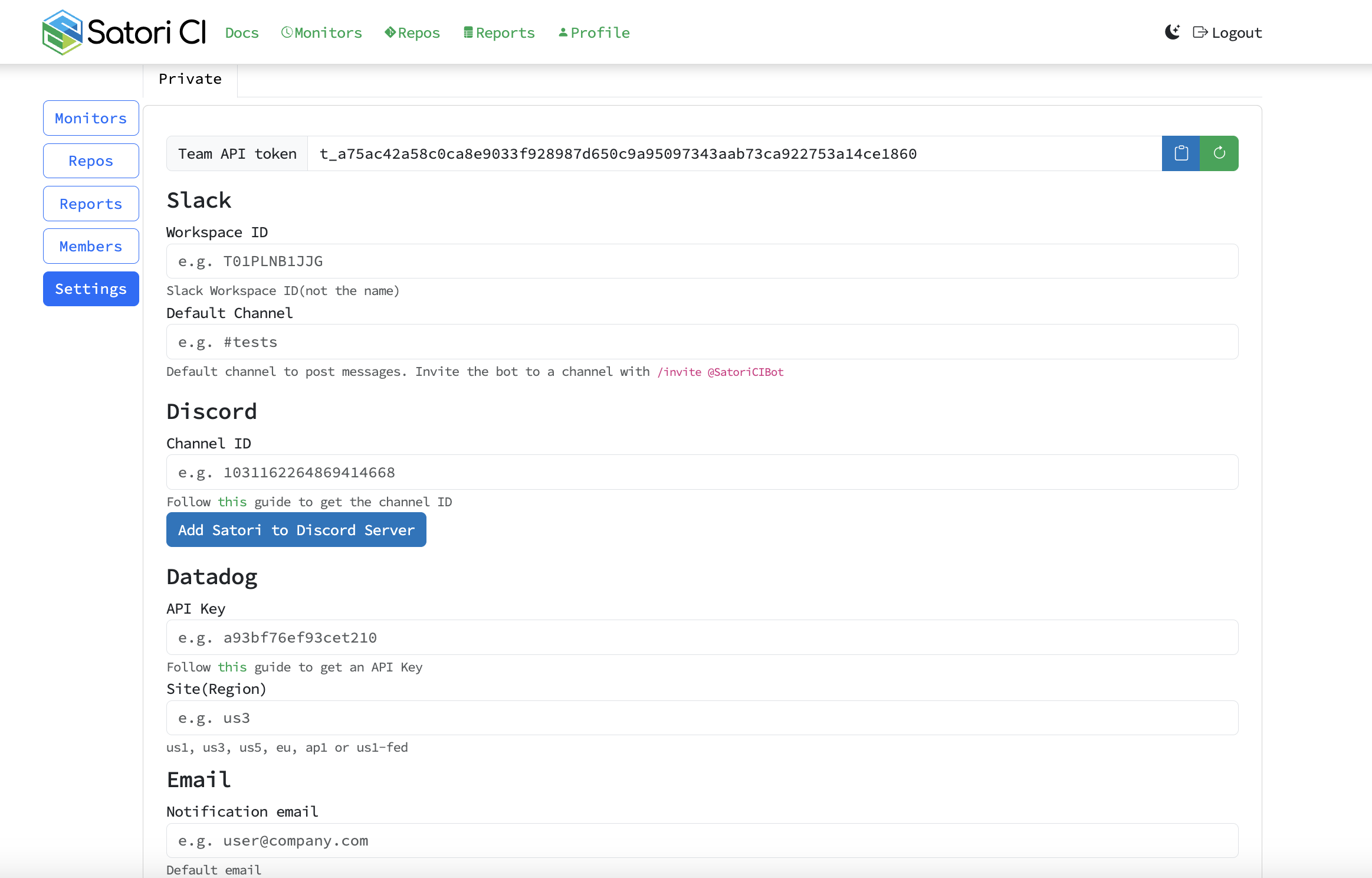
satori-v2 settings
Manage personal account settings: GitHub PAT, AI provider/credentials, and notification defaults (Slack, email, Discord, Telegram). There is no interactive menu and no Datadog keys.
List all settings
satori-v2 settingsPrints three tables (github, ai, notify). Secrets (github, ai.anthropic, …) show configured or (not set), never the raw value.
View one key
satori-v2 settings default
satori-v2 settings email
satori-v2 settings github
satori-v2 settings ai.provider
satori-v2 settings KEY
Notify keys: default, email, slack_workspace, slack_channel, discord, telegram
Other keys: name, github, ai.provider, ai.model_id, ai.anthropic, ai.openai, ai.openrouter, fix_prs
Set a notify value
satori-v2 settings default slack
satori-v2 settings email user@example.com
satori-v2 settings slack_workspace T1234567
satori-v2 settings slack_channel C1234567
satori-v2 settings discord 1234567890
satori-v2 settings telegram -1234567890
default must be one of slack, email, discord, or telegram. Empty values are rejected; use --clear to remove a setting.
Clear a value
satori-v2 settings email --clear
satori-v2 settings default --clear
Other settings
# GitHub PAT (also: satori-v2 config pat TOKEN)
satori-v2 settings github ghp_...
satori-v2 settings github --clear

# AI credentials and selection
satori-v2 settings ai.anthropic sk-ant-...
satori-v2 settings ai.openai sk-...
satori-v2 settings ai.openrouter sk-or-...
satori-v2 settings ai.provider anthropic
satori-v2 settings ai.model_id claude-sonnet-4-5
satori-v2 settings ai.provider --clear
satori-v2 settings ai.anthropic --clear
The models you can select are the ones the provider itself lists: for Anthropic and OpenAI, the models your stored API key can use, so store the key first; for OpenRouter, its public list. A model outside that list is rejected. Setting ai.provider picks a default model from that list when the current model is not valid for that provider. Clear ai.model_id by clearing ai.provider instead.
# Profile name and automatic fix pull requests
satori-v2 settings name "Ada Lovelace"
satori-v2 settings fix_prs true
satori-v2 settings fix_prs --clear
fix_prs is true or false; see Automatic fix pull requests.
Saved parameters and secrets
Save parameters and secrets once to apply them to every job you create (run, scan, monitors).
satori-v2 parameters set HOST example.com
satori-v2 parameters set PORTS 80 443     # several values, like -d PORTS=80 -d PORTS=443
satori-v2 parameters list
satori-v2 parameters unset HOST

satori-v2 secrets set API_TOKEN           # prompts for the value without echoing it
echo "$API_TOKEN" | satori-v2 secrets set API_TOKEN
satori-v2 secrets list                    # names only, values are never shown
satori-v2 secrets unset API_TOKEN

# Values for one repository, over yours
satori-v2 parameters set HOST staging.example.com --repo acme/app
satori-v2 secrets set API_TOKEN --repo acme/app
satori-v2 secrets list --repo acme/app- Precedence: yours < the repository's < the job's. A value passed with the job wins, so
-d HOST=otherreplaces any savedHOST. A secret sent with a job request replaces the saved secret with the same name. When a name is both a saved parameter and a secret, the secret wins. - Repository values (
--repo owner/repo) apply to runs and scans of that repository. A wildcard scan (satori-v2 scan acme/*) gives each repository's execution its own values. Values can only be saved for a singleowner/repo, never for a wildcard. Monitors only get your own values. - Parameters work like
-d: playbooks read them as$. They are stored with the job and shown in its details, so don't use them for secrets.localruns also get them, including the repository's when the run has one (--repo, or the gitoriginof the directory it runs in). - Secrets are playbook inputs too:
$gets the secret, like-d API_TOKEN=...would, so a playbook works the same whether you pass the value or save it. The value is filled in only when the command runs: it's never stored with the job and it's replaced by[REDACTED]in the output. Secrets are not environment variables.localruns don't get them, so pass them with-dthere. - Secrets are encrypted at rest. A job can hold about 15 secrets in total, saved ones included; past that, the job is rejected with "Secrets are too large". In a wildcard scan, a repository whose secrets don't fit is skipped with that reason.
- Saved values are copied when the job is created. Changes don't reach monitors that are already running: recreate the monitor to pick them up.
Playbook Settings
Define when and where to notify with a settings.notify list. Each rule has:
| Field | Required | Description |
|---|---|---|
result | no | fail or pass — when the rule applies. Omitted matches both. |
to | yes | Destination URI (see below) |
severity | no | List of named levels. On fail, the rule matches if any listed level appears in the execution report. Ignored when the run passed. |
watch | no | When the rule fires: finish (the execution finished) and/or issue-status (an issue changed status). Without watch, the rule fires on finish only. See Watching issue status. |
Named severities (case-insensitive): info, low, medium, high, critical, blocker.
Destination URIs
| Scheme | Format | Notes |
|---|---|---|
| Slack | slack://WORKSPACE:CHANNEL or slack://WORKSPACE/CHANNEL | Channel may be a Slack channel ID (C…) or #name. Invite @SatoriCIBot to the channel. Sending is supported. |
email://user@example.com | Sent from info@satori.ci via Satori's Gmail integration. Sending is supported. | |
| Discord | discord://CHANNEL_ID or discord://GUILD/CHANNEL_ID | Channel ID from Discord Developer Mode. Invite the Satori bot to the server/channel (see Discord). Sending is supported. |
| Telegram | telegram://CHAT_ID or telegram://bot:chat | Chat/channel ID (often negative, e.g. -15050500050). Invite @satori_ci_bot (see Telegram). Sending is supported. |
| Short form | slack, email, discord, telegram, default, or empty scheme:// | Expanded from the user's PATCH /settings notify defaults at send time. |
Multiple rules are allowed. Matching Slack, email, Discord, and Telegram destinations are notified at the end of each finished execution (and on issue-status events when watch includes issue-status). Messages include pass/fail, fail counts, severity summary, and links to the job and report on https://dashboard.satori.ci.
Example
settings:
  notify:
    - result: fail
      severity: [high, critical, blocker]
      to: slack://T00000000:C00000000
    - result: fail
      severity: [high, critical, blocker]
      to: email://security@example.com
    - result: fail
      severity: [high, critical, blocker]
      to: discord://123456789012345678
    - result: fail
      severity: [high, critical, blocker]
      to: telegram://-15050500050
    - result: pass
      to: slack://T00000000:C11111111
Use saved user defaults (no workspace/channel in the playbook):
settings:
  notify:
    - result: fail
      to: slack
Notify on any failure (no severity filter):
settings:
  notify:
    - result: fail
      to: slack://T00000000:C00000000
Notify on finish regardless of pass or fail:
settings:
  notify:
    - to: slack://T00000000:C00000000
Watching issue status
watch lists the events that fire a rule:
watch | Sent when |
|---|---|
| omitted | the execution finishes |
[finish] | the execution finishes |
[issue-status] | an issue is marked True Positive / TP (not on finish) |
[issue-status, finish] | both |
An issue-status event happens when an issue (finding) of the execution is marked True Positive (TP), for example after satori-v2 issue <id> status TP or satori-v2 issue <id> verify. Other status changes (FP, investigating, etc.) do not notify. For these events:
resultis checked against the execution the issue belongs to.severityis checked against the issue's severity, not the report totals. An issue without a severity does not match a rule that setsseverity.- To avoid repeated messages on every run, the new status is compared with the last triaged status (anything but
OPEN) of the same issue in an earlier execution of the same repository and playbook. If it's the same, nothing is sent.
settings:
  notify:
    - watch: [issue-status]
      result: fail
      severity: [blocker, critical, high]
      to: slack://T00000000:C00000000
    - watch: [issue-status]
      result: fail
      severity: [blocker, critical, high]
      to: email://security@example.com
    - watch: [issue-status]
      result: fail
      severity: [blocker, critical, high]
      to: discord://123456789012345678
    - watch: [issue-status]
      result: fail
      severity: [blocker, critical, high]
      to: telegram://-15050500050
The message includes the issue title, the old and new status, the severity, the repository and a link to the report.
CLI override: --notify
On satori-v2 run, --notify is repeatable. When present, the CLI rules replace playbook settings.notify for that run (they do not merge).
satori-v2 run ./ \
  --notify 'severity=blocker,critical,high,result=fail,to=slack://T00000000:C00000000' \
  --notify 'result=pass,to=slack://T00000000:C11111111' \
  --notify 'result=fail,to=email://security@example.com' \
  --notify 'result=fail,to=discord://123456789012345678' \
  --notify 'result=fail,to=telegram://-15050500050'
Each value is a comma-separated key=value string:
- Required:
to=<uri> - Optional:
result=pass|fail(omitted matches both) - Optional:
severity=blocker,critical,high(comma-separated levels until the next key) - Optional:
watch=issue-status,finish(either or both; defaults to finish only, see Watching issue status) status=…is accepted but ignored
Notify only when a blocker, critical or high issue is marked True Positive:
satori-v2 run ./ \
  --notify 'watch=issue-status,severity=blocker,critical,high,result=fail,to=slack://T00000000:C00000000'
--notify is not sent for a repository run (--repo, or an owner/repo source) or when the playbook creates a monitor. In those cases the flag is ignored without an error and the playbook's settings.notify rules are not replaced.
See also Run command options.
Search: --notify
On satori-v2 search, --notify is repeatable and takes a bare Slack, email, Discord, or Telegram URI (slack://workspace:channel, email://user@example.com, discord://CHANNEL_ID, or telegram://CHAT_ID), or one of the keywords slack, email, discord, telegram and default to use your saved defaults. It is not a job rule: the API sends the current page of search results as a monospace table (Id, Playbook source, Status, Result, Created at), and still prints the table in the terminal.
satori-v2 search --playbook satori://code/python/pyspector.yml \
  --notify slack://T00000000:C00000000 \
  --notify email://security@example.com \
  --notify discord://123456789012345678 \
--notify telegram://-15050500050- Requires an authenticated session (anonymous search cannot notify)
- Empty result pages are not sent
- Invalid URIs fail the request with an error; delivery failures are best-effort and do not hide the listing
- Does not apply to
--download,--reports,--stop, or--delete
See also Search.
Legacy keys
log, logOnFail, and logOnPass (channel type names without URIs) are not applied by CLI v2. Prefer settings.notify with explicit to URIs.
Configuring Notifications
Email
To set up email notifications, use this command:
satori-v2 settings email your@email.comSlack
To set up Slack notifications in Satori, follow these steps to retrieve your workspace and channel IDs:
Steps to Retrieve Workspace and Channel ID:
- Open the web version of Slack and navigate to the channel you're interested in.
- In your browser’s URL bar, you’ll see a URL like this: https://app.slack.com/client/T00000000/C00000000. The part after '/client/' is split into two segments.
- In the Satori CI dashboard, go to Settings.
- Enter the first segment of the URL (e.g., T00000000) in the workspace ID field.
- Insert the Channel ID (e.g., C00000000) in the default channel field to receive notifications.
- Select Add Satori to Workspace and follow the instructions on the Slack website to add the bot.
- In Slack, invite the bot to the channel by typing
/invite @SatoriCIBot.
Or via the CLI command:
satori-v2 settings slack_workspace TXXXXXXXXXX
satori-v2 settings slack_channel CXXXXXXXXXX
Discord
To set up Discord notifications in Satori, you first need to obtain the Channel ID. Follow these steps:
Enabling Developer Mode:
- Open your Discord settings by clicking the gear icon in the bottom left corner, next to your username and avatar.
- In the settings menu, select Appearance under the App Settings category.
- Scroll down to the Advanced section and toggle on Developer Mode.
Obtaining the Channel ID:
- Right-click the desired channel name in Discord.
- Select Copy ID from the dropdown menu. The Channel ID is now copied to your clipboard. Note: This method can be used to obtain IDs for text channels, voice channels, categories, and individual messages.
Once you have the Channel ID, use it in playbook settings.notify (or satori-v2 run --notify) as discord://CHANNEL_ID. Invite the Satori Discord bot to your server first:
https://discord.com/api/oauth2/authorize?client_id=1038196776752128131&permissions=2048&scope=bot
You can also configure a default channel in Satori Web or with the following command:
satori-v2 settings discord CHANNEL_IDTelegram
To set up Telegram notifications with Satori, follow these steps:
Create a Telegram Channel: ensure you have a Telegram channel and invite the
@satori_ci_botto it.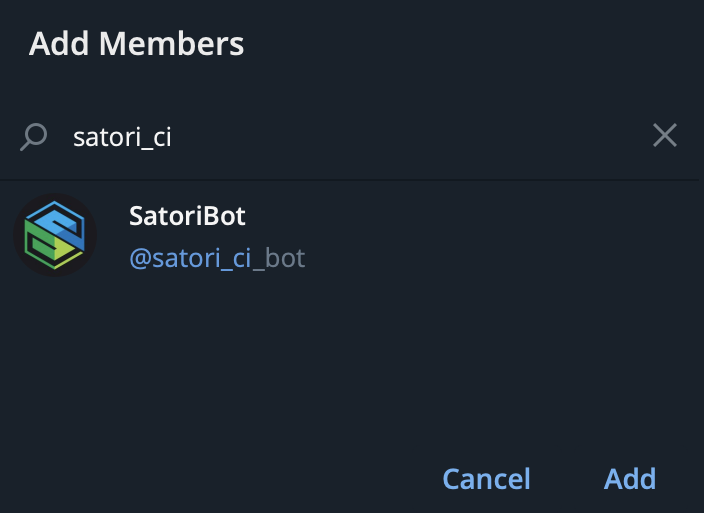
Obtain the Channel ID: access your channel via the web at Telegram Web. The Channel ID is the number that appears after the # in the URL (e.g., -15050500050). Once you have the Channel ID, use it in playbook
settings.notify(orsatori-v2 run --notify) astelegram://CHAT_ID(include the leading minus for channels). Invite@satori_ci_botto the channel first.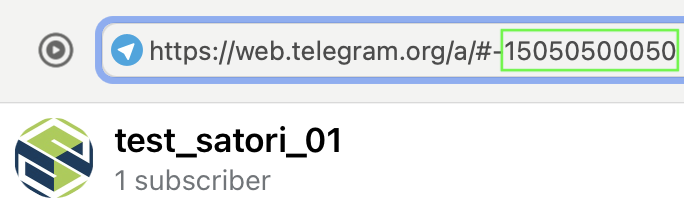
You can also configure a default channel:
satori-v2 settings telegram CHANNEL_IDDatadog
Datadog delivery is handled by the platform notification service. User notification defaults (satori-v2 settings / PATCH /settings notify) and playbook settings.notify rules do not currently support Datadog destinations — configure Slack, email, Discord, or Telegram instead.
Report notifications
To receive a copy of your test report in PDF format along with your notifications, you can specify this in your Playbook Settings.
settings:
  notify:
    - result: fail
      to: slack://T00000000:C00000000
  report: pdf
If you wish to prevent the generation of any reports, you can set the report option to false. This will ensure that all generated outputs are deleted:
settings:
  notify:
    - result: fail
      to: slack://T00000000:C00000000
  report: false