
Integrating Satori with your commits using our GitHub App
Each time you push code to your GitHub repository, there is a potential risk that may be introduced. To safeguard your project and its sensitive data, it's crucial to minimize the malfunctions or vulnerabilities. The three primary areas of concern are:
- Code malfunction: If you cannot assert how your software behaves, deployment should be considered or stopped.
- Secrets in your code: Hard-coded credentials, API keys, and sensitive data can be unintentionally pushed, compromising the security of your systems.
- Vulnerable code (internal or third-party): Code may contain security weaknesses that malicious actors can exploit.
To automatically safeguard your GitHub repositories and ensure continuous testing, install our Satori App:
1. Install the Satori CI GitHub App:
Go to the Satori GitHub App page. Make sure you are authenticated with GitHub to proceed with the installation. You need to be authenticated to configure it.
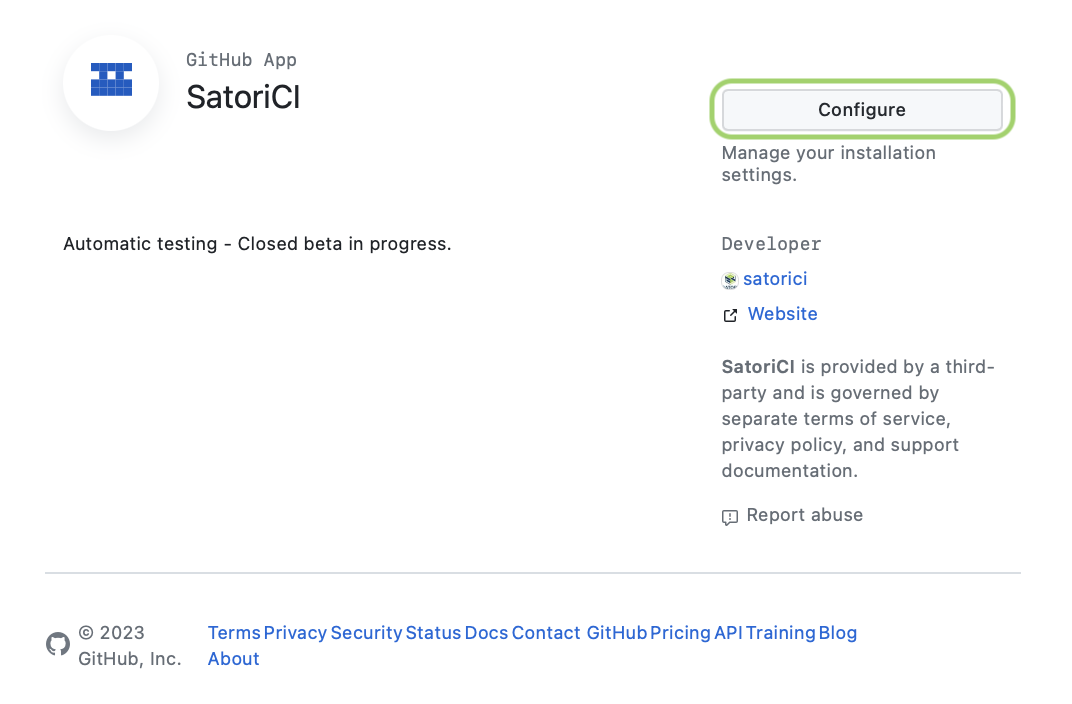
2. Click on Configure:
Select which accounts you will be setting it up for.
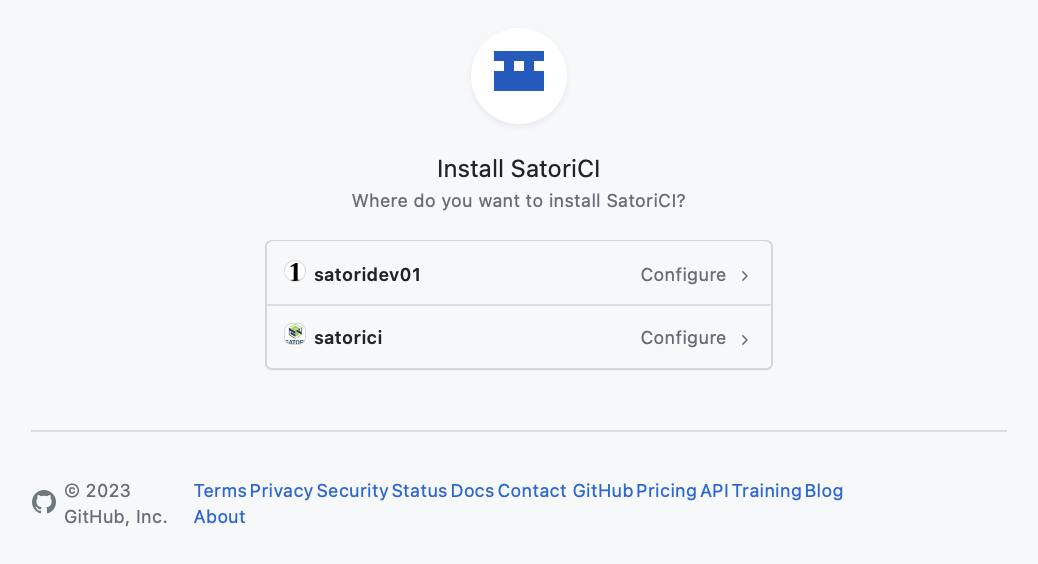
3. Choose the GitHub accounts where you want to set up the Satori CI App:
Select the repositories where you want to install the app. You can choose specific repositories or select All repositories.
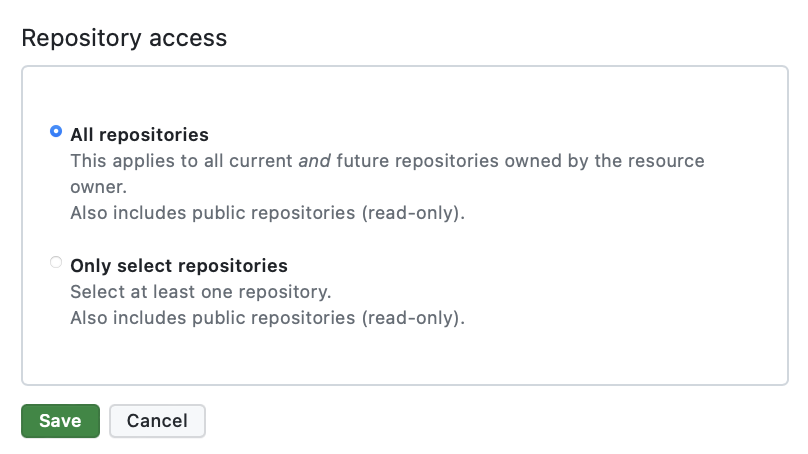
4. Save:
Once you are done, click on Save. We care about your security, so we will only store your email, your repositories names, and the reports. Your code only lives within the virtual machines that are present during the execution.
5. Create your first .satori.yml file:
To begin automating tests in your connected repositories, you need to create a file named .satori.yml. This file will define the tests that will automatically run every time you push new code to your repository. Let's start by keeping it simple and checking for secrets using Trufflehog, a tool that scans for sensitive information such as API keys or credentials that may be unintentionally exposed in your code.
settings:
  name: CI Tests for every push of my Repo

import:
- "satori://code/trufflehog.yml"

tests:
  assertReturnCode: 0
  build:
  - make
  run:
    assertStdoutContains: "An expected output" # assert the output of    the main system execution of your project
    your_project:
    - ./your_project
With this configuration and the .satori.yml file within your project, automated tests defined in your playbook will be triggered each time you push code to the default branch of your GitHub repository. These tests will run on every pipeline execution, ensuring continuous validation of your code.
What a push runs
Each push to the repository's default branch starts one scan of the pushed commit, with the repository's root .satori.yml. Pushes to other branches, and branch deletions, start nothing.
The scan belongs to the user who installed the GitHub App, and runs in one of that user's accounts:
- The account or organization that was selected when the user opened the Add playbook pull request for the repository.
- Otherwise, the one where the user last scanned the repository.
A repository that has neither is not scanned on push: scan it once (satori-v2 scan owner/repo), or add its playbook from the dashboard, to choose where its reports go.
The scan gets the saved parameters and secrets of that user and of the repository, like any other scan. When GitHub delivers the same push more than once, only one scan is created.
Report link on a merged pull request
When the push is the merge of a pull request, Satori comments on that pull request with a link to the live output of the scan, as soon as the scan starts running. This includes the pull request that adds the repository's .satori.yml.
- The report becomes visible to the repository's contributors only (
CONTRIBUTORS), whatever visibility it had. A contributor opens the link while logged in to Satori with their GitHub account. - The comment is posted once per report.
- Nothing is posted, and the visibility does not change, when GitHub cannot tell which single pull request the commit came from, when it cannot list the repository's contributors, or when the GitHub App lacks the Pull requests write permission. The scan still runs.